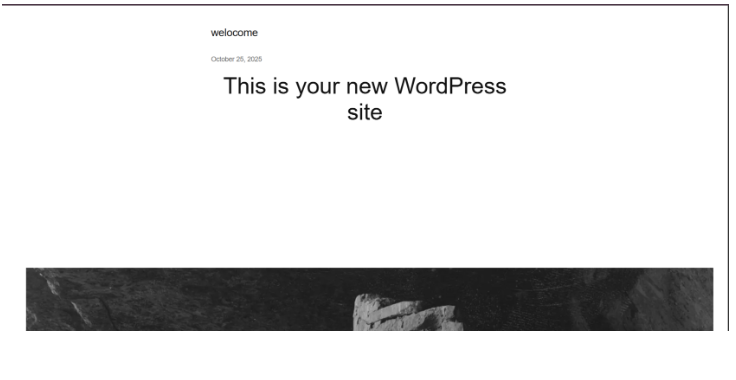
1. Make sure your WordPress project runs on localhost perfectly.
2. Preparing Files for Upload
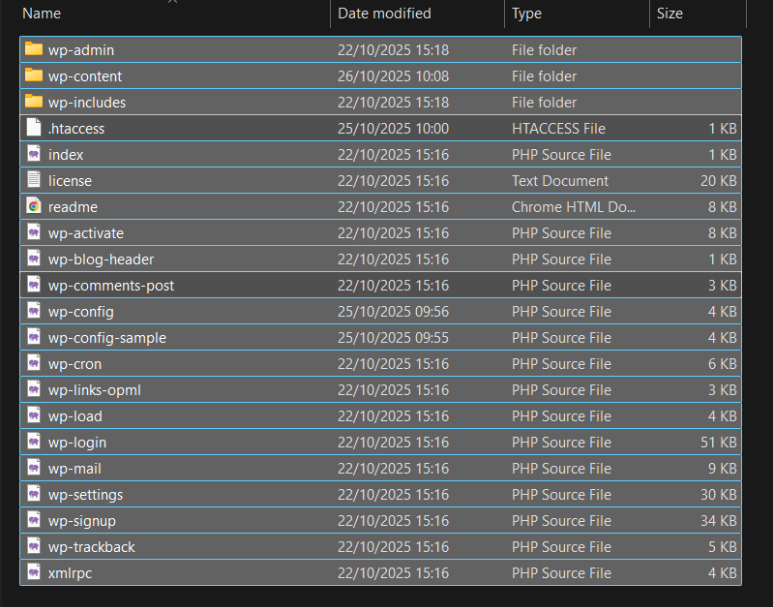
- Locate your local WordPress installation folder.
- Compress all the WordPress files and folders into a .zip archive.
3. Exporting the Local WordPress Database
- Access your local phpMyAdmin (usually via http://localhost/phpmyadmin.
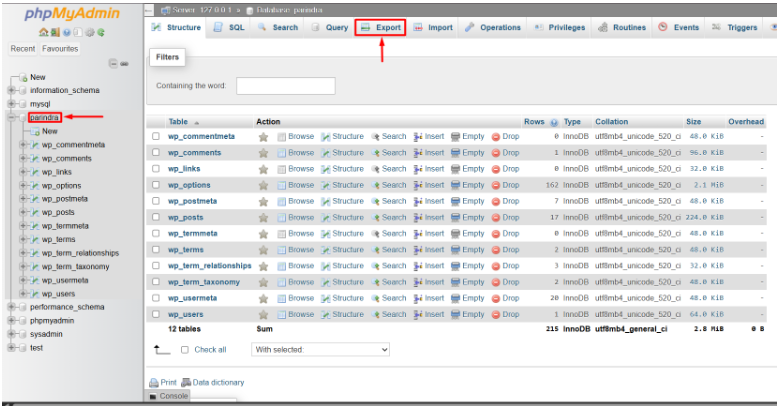
- Select the database associated with your WordPress site.
- Click on the “Export” tab.
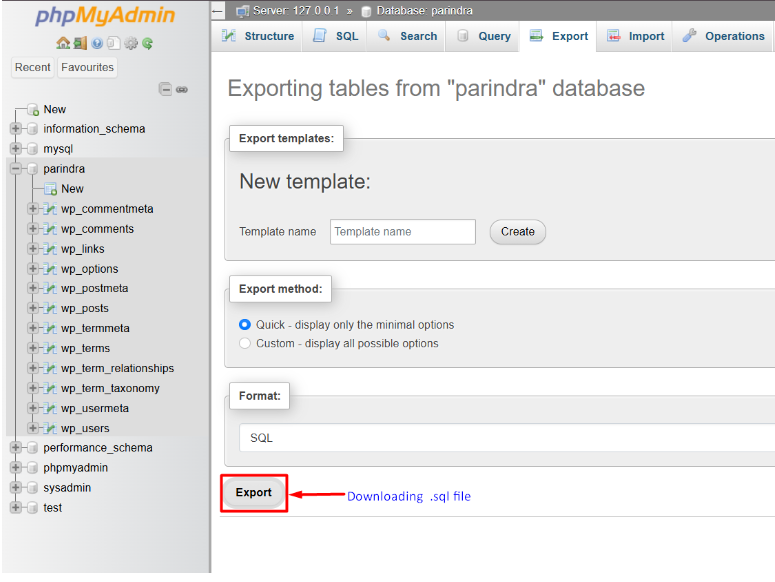
Choose the “Custom” export method for more control, or “Quick” for a basic export.
Ensure the format is SQL and click “Go” to download the .sql file.
4. Create a Database and Database User
- Log in to your cPanel account.
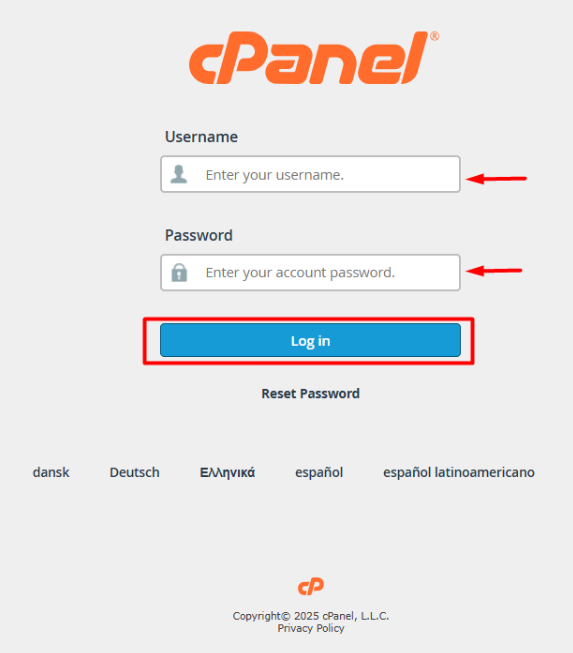
Navigate to “Manage My Databases” under the “Databases” section.
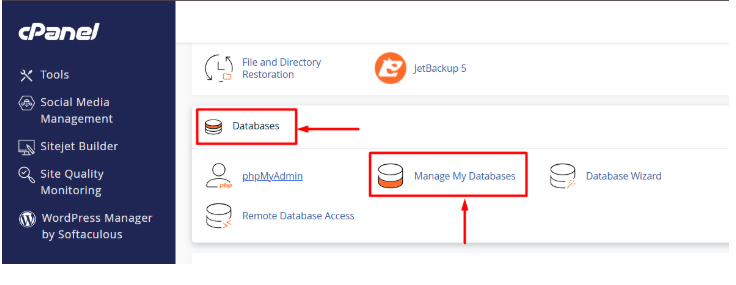
Create a New Database User.
- Scroll down to Database Users.
- Click Add New User.
- Enter a username and a strong, secure password (you can use cPanel’s password generator). Make sure to note down the database name, username, and password
- Click Create User.
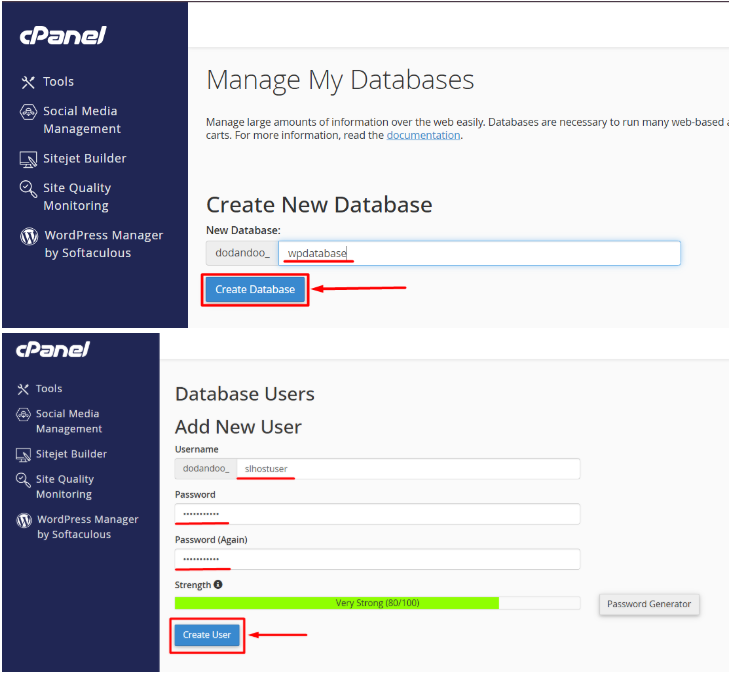
5. Give the User Access to the Database.
- Under Add User to Database, choose the user and the database you just create.
- Click Add.
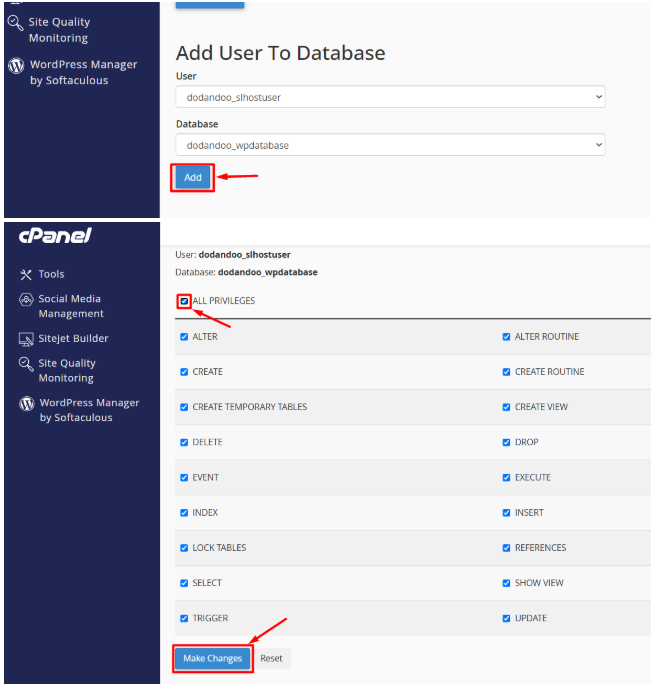
- On the next screen, select ALL PRIVILEGES — this gives your Laravel app full control over the database.
- Click Make Changes to save.
6. Upload and extract WordPress Files.
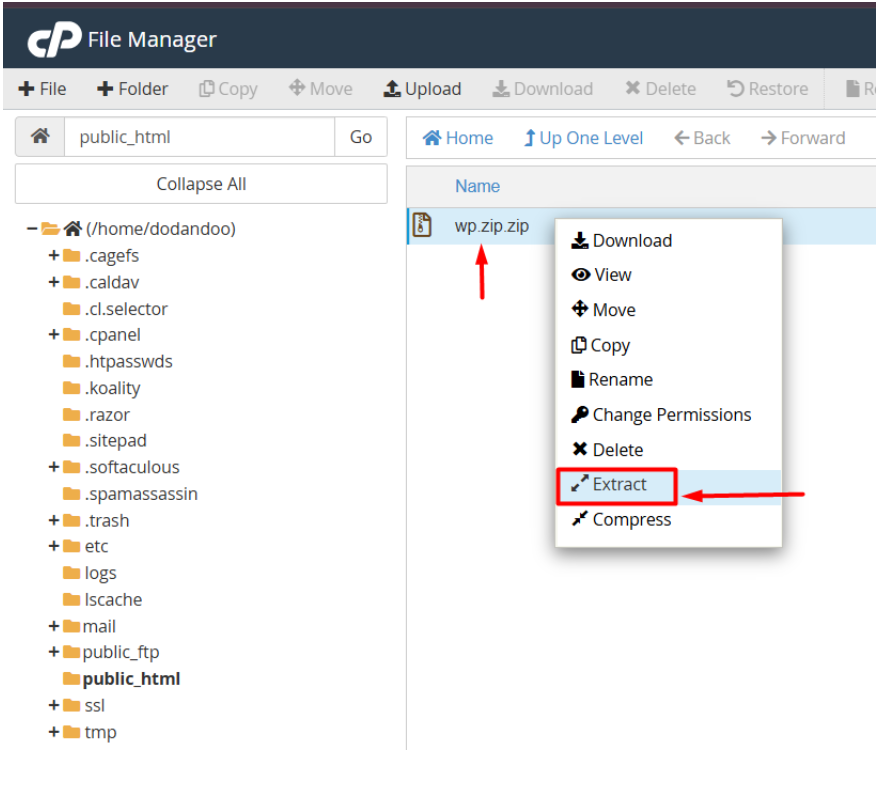
- Access cPanel’s “File Manager.
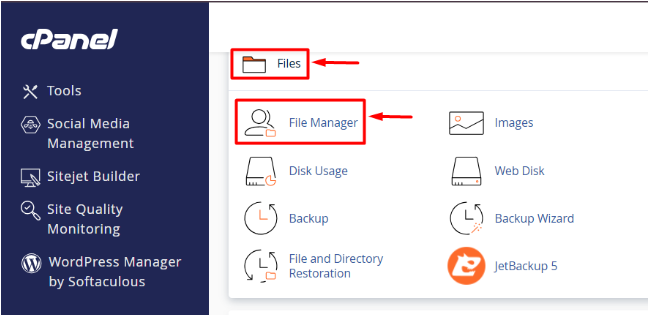
- Navigate to the public_html directory.
- Upload the compressed WordPress .zip file.
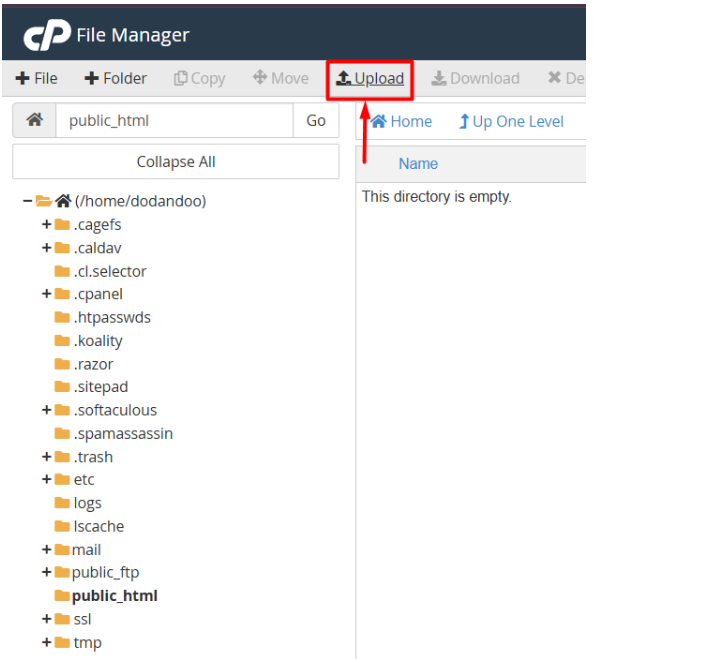
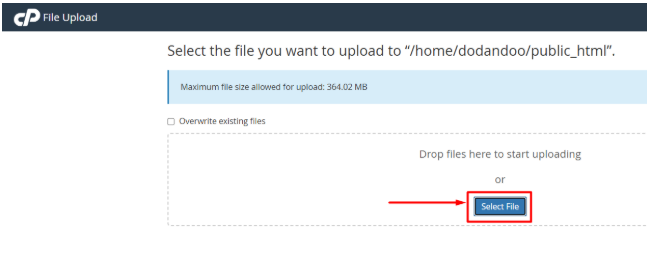
- After completing the upload, go back to the public_html File.
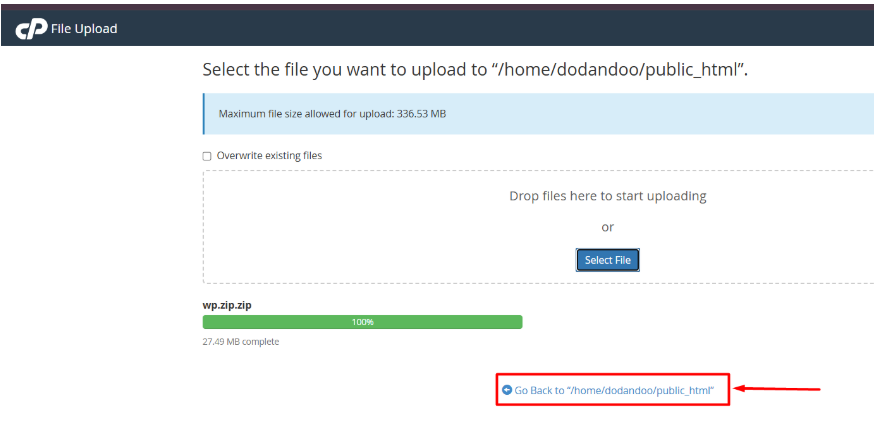
Extract the contents of the .zip file into the public_html file.
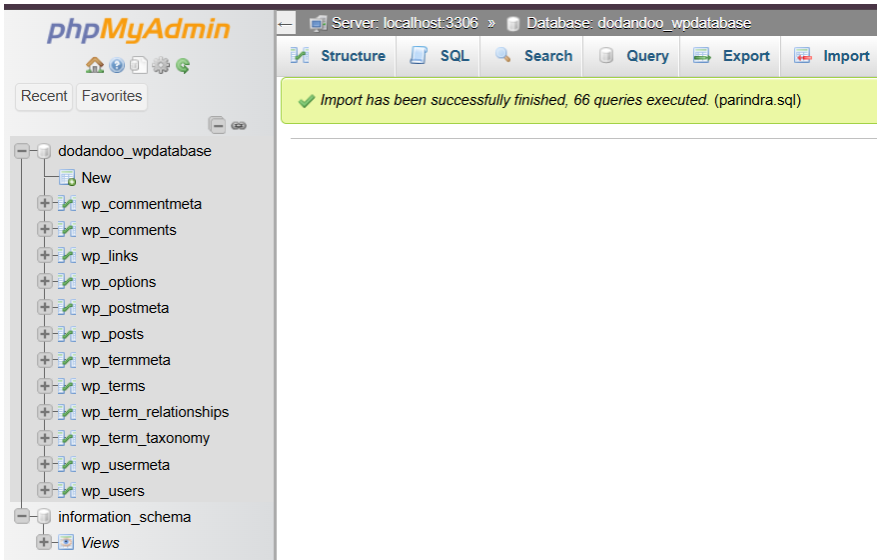
7. Importing the Database.
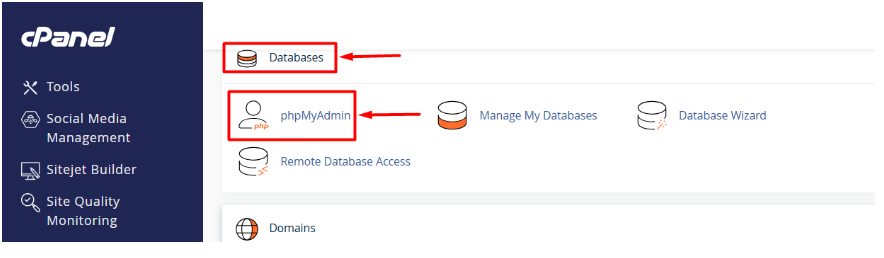
In cPanel, go to “phpMyAdmin” under the “Databases” section.
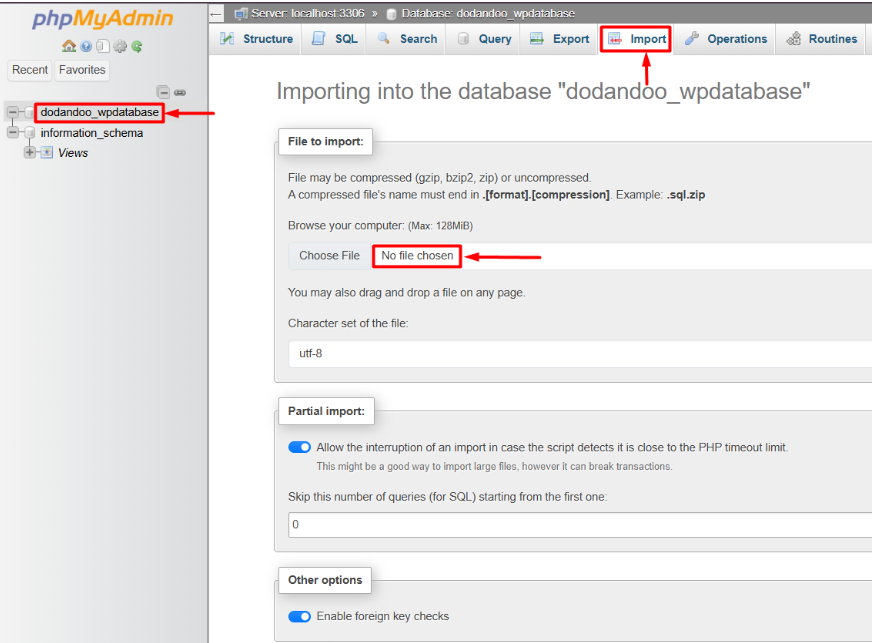
- Select the newly created database.
- Click on the “Import” tab.
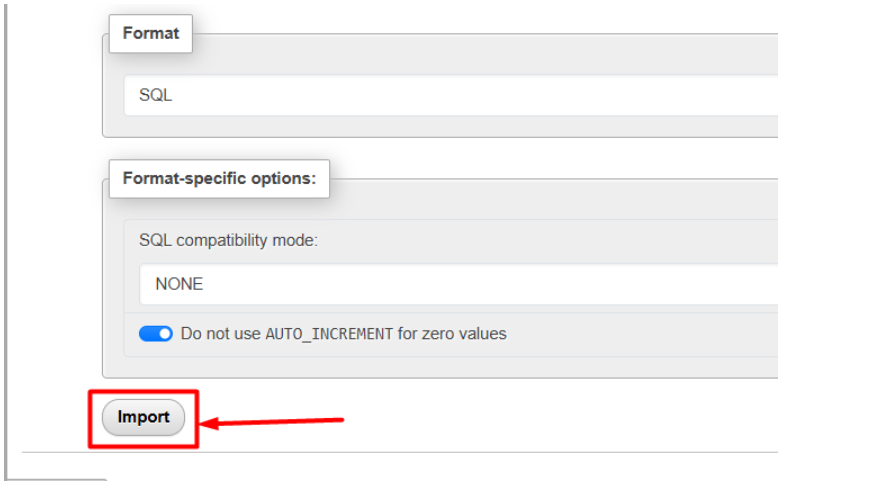
- Choose the .sql file you exported from your localhost and click “Go” to import.
8. Updating the wp-config.php file.
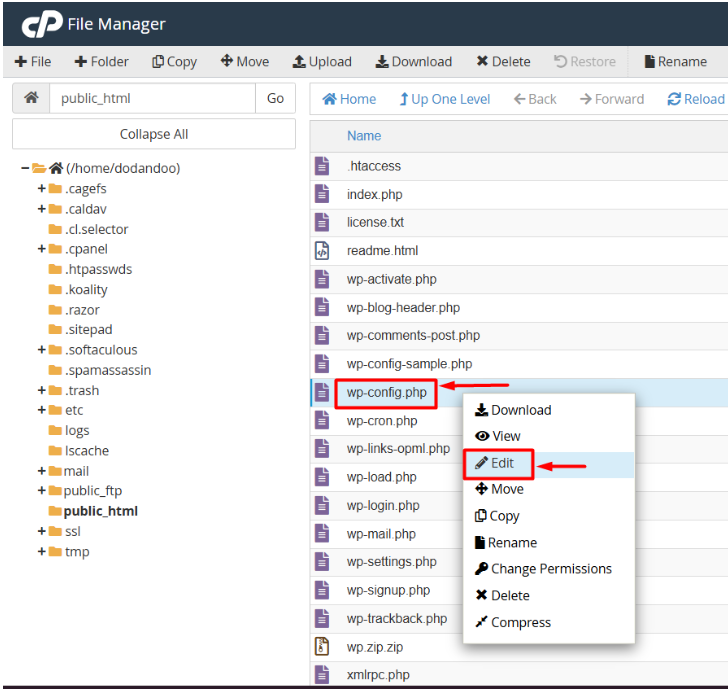
- In cPanel’s File Manager, locate the wp-config.php file within your WordPress installation directory.
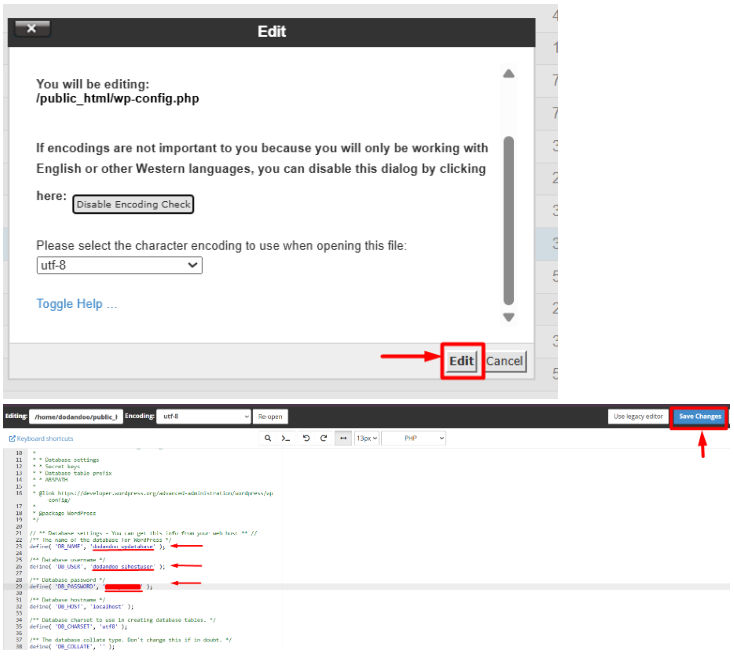
- Edit the file and update the database name, username, and password to match the credentials you created in cPanel. (that you noted).
- Click Save Changes.
9. Final Checks
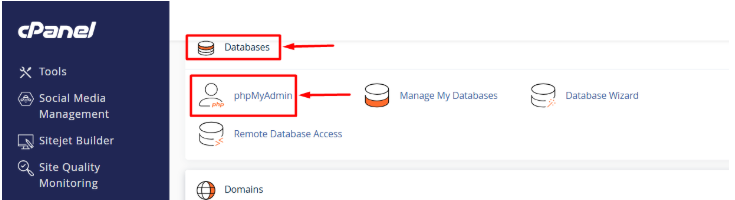
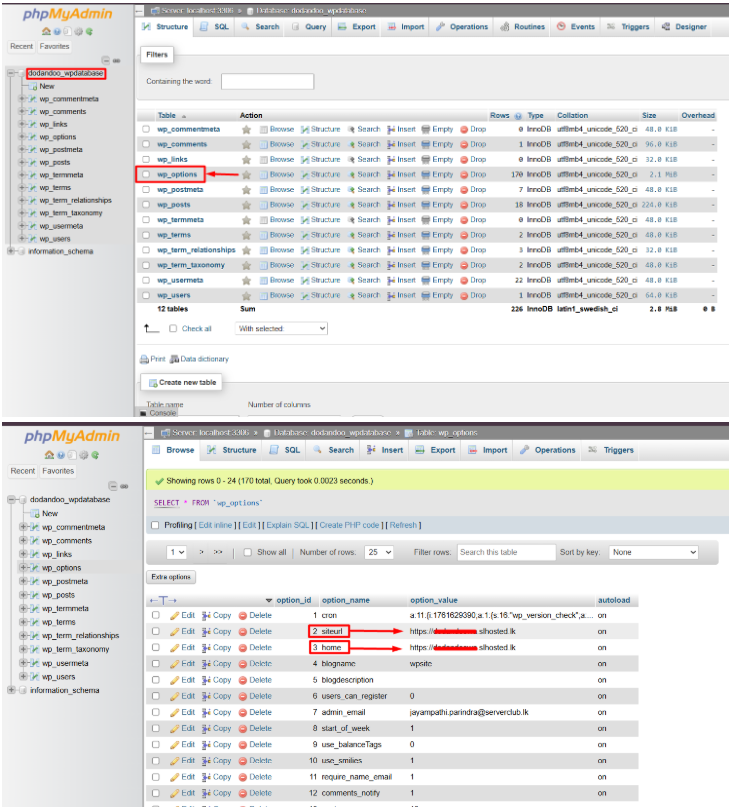
- In cPanel, go to “phpMyAdmin” under the “Databases” section.
- Select the database associated with your WordPress installation
- Find the table named wp_options
- Find the rows where the option_name is “siteurl” or “home”.
- Click the “Edit” button for these rows. Replace the existing URL with your new WordPress URL. Ensure you include “https://”
- Click “Go” or “Save” to apply the change.
10. Go to your domain and refresh it.