1. Your Profile
To manage your profile in the client area:
- Log in to your account at 444Hosting Client Area.
- Go to the Your Profile section.
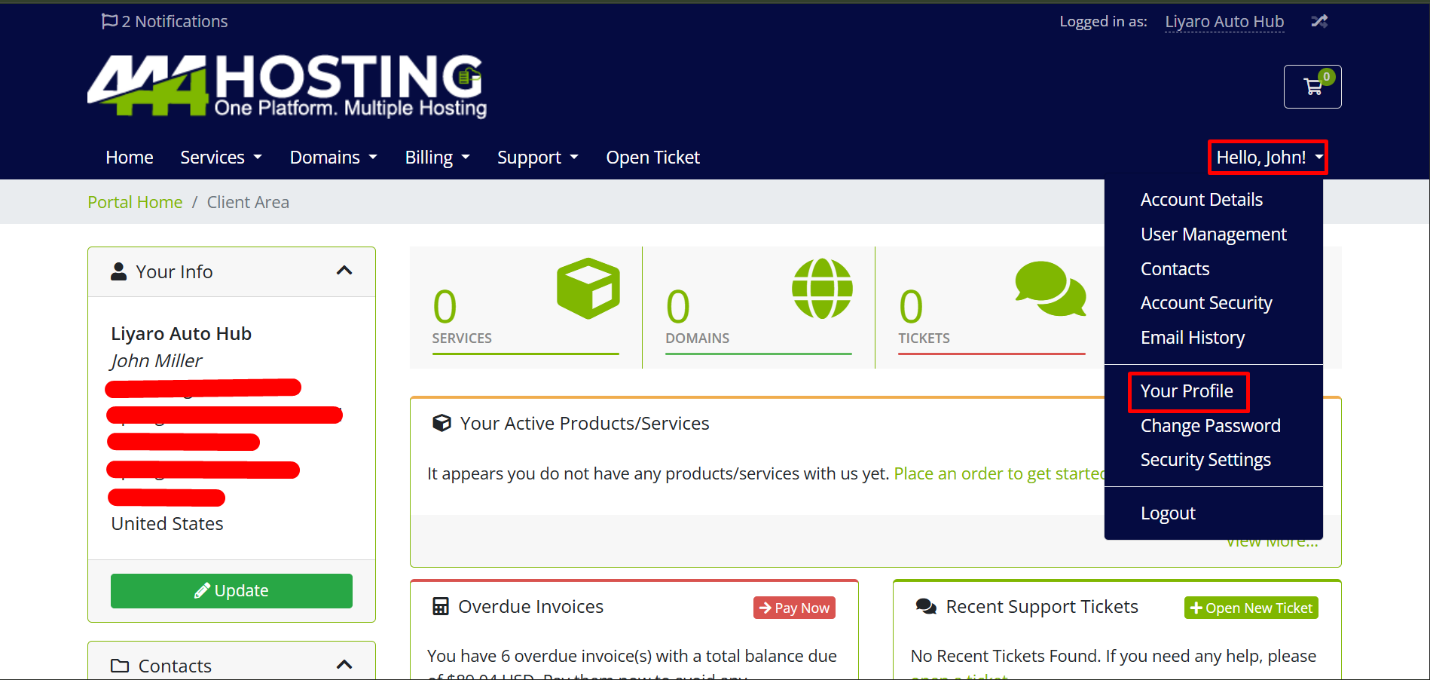
- Here, you can see your personal details like your first and last name and your email address.
- If you need to change your email, click on the “Change Email Address” option and enter your new email address. Make sure your new email is verified.
- Once done, click Save Changes to update your profile.
2. Changing Your Password
To change your password:
- Log in to the client area and navigate to the “Change Password” section.
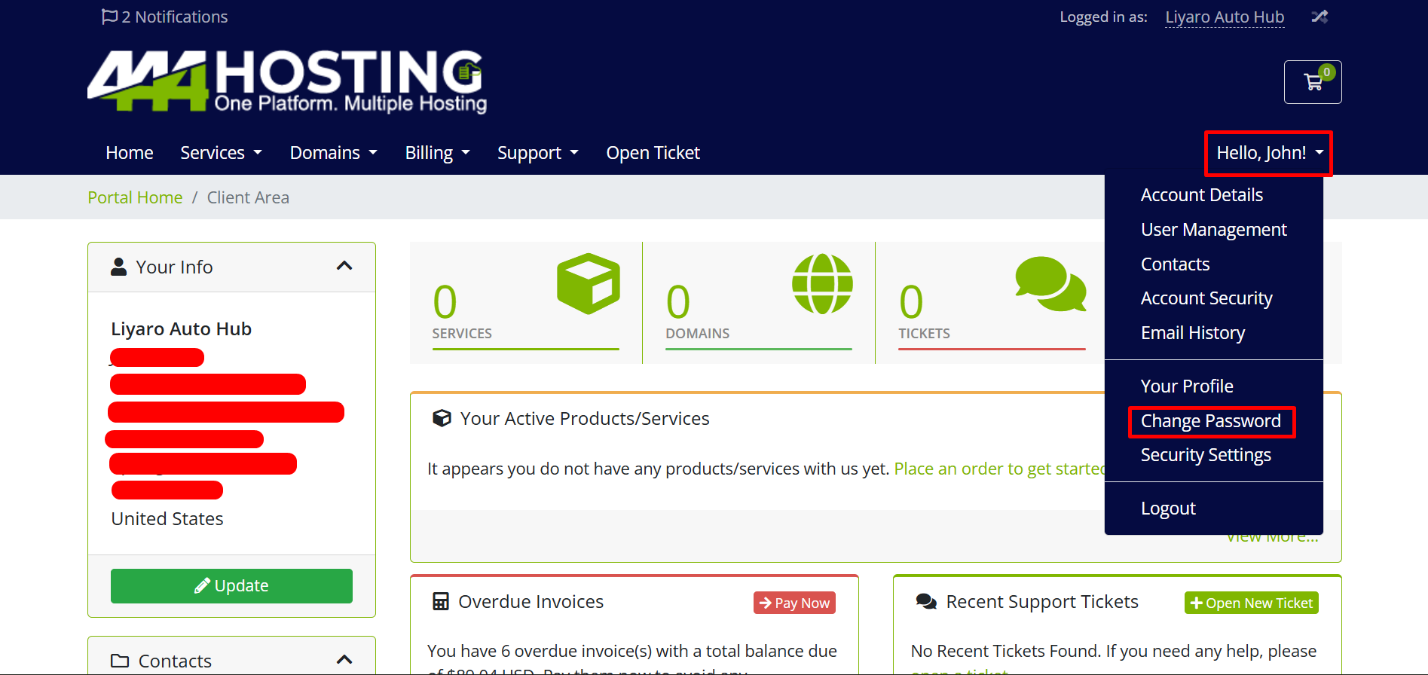
- Enter your Existing Password for verification.
- Type your New Password or you can generate a password by clicking the Generate Password Button.
- For better security, ensure that your password:
Includes both uppercase and lowercase letters.
Has at least one symbol (e.g., #, $, !, %).
Avoids common dictionary words. - Re-enter your new password in the Confirm New Password field.
- Click Save Changes to update your password.
Following these steps will help keep your account secure and your information up to date.